
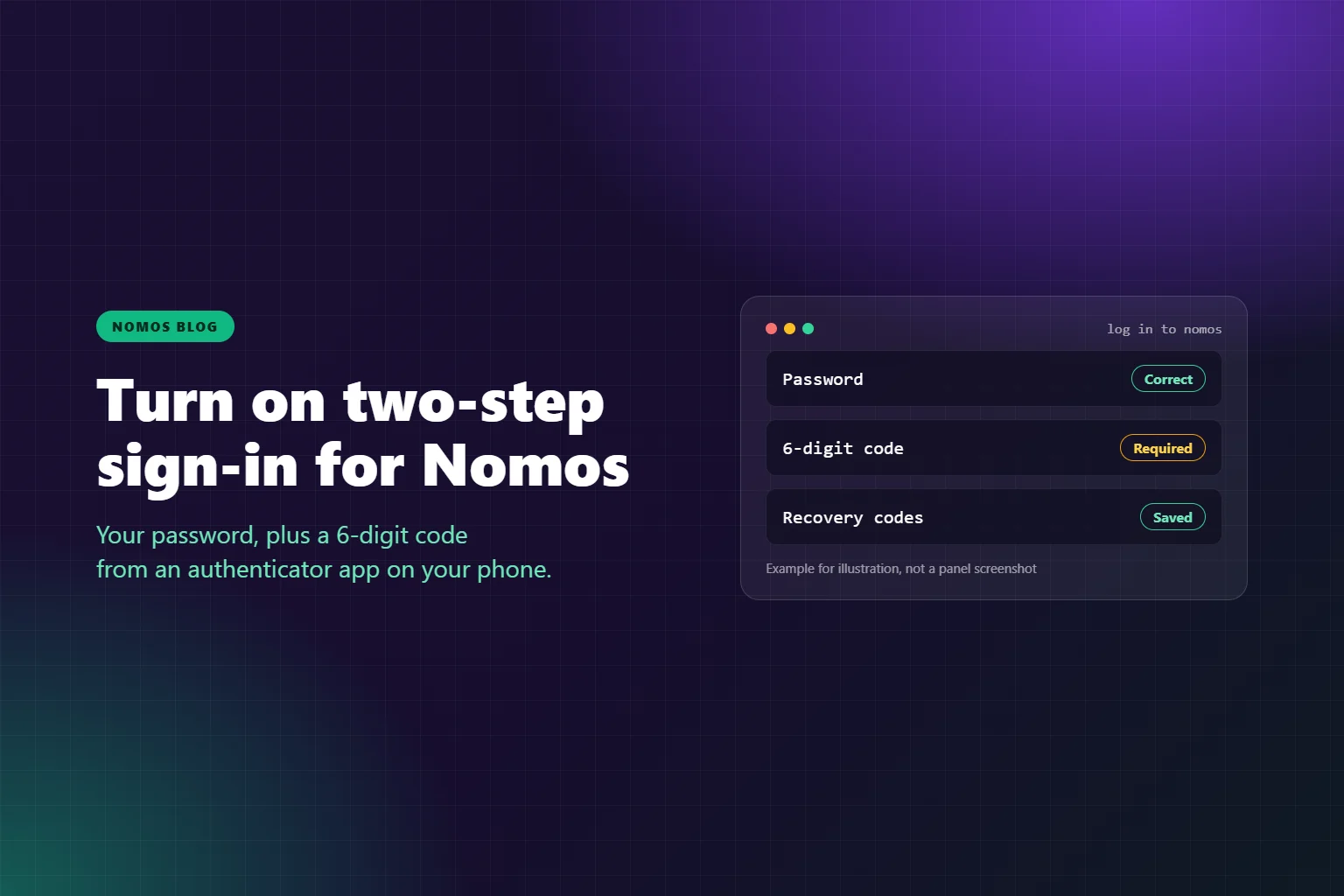
Two-step sign-in adds a second check to your Nomos login: after your password, Nomos asks for a 6-digit code from an authenticator app on your phone. If you’re comparing two factor authentication hosting options, this is the feature to look for, and on Nomos you can turn it on yourself under Account.
This guide explains what two-step sign-in means, why a password alone is risky, how to turn it on, how the authenticator app and recovery codes work, and what to do if you lose your phone.
What is two-step sign-in?
Two-step sign-in, also called two-step verification or two-factor authentication, means you prove who you are in two different ways when you log in:
- Something you know: your password.
- Something you have: your phone, with an authenticator app that shows a new 6-digit code every few moments.
So even if someone learns your password, they still can’t get in without your phone. CISA, the US cybersecurity agency, explains this extra step in its guide More than a Password.
Two factor authentication hosting: why a password isn’t enough
Your hosting account controls your websites, domains, email and backups. That makes it a valuable target. Yet a password on its own can leak in many ordinary ways:
- Reused passwords. If you use the same password elsewhere and that site is breached, attackers may try it on your hosting login.
- Phishing. A fake login page can trick anyone into typing a password.
- Shared access. A password shared with a developer or a former employee may still be in someone’s notes.
In each case, two-step sign-in is what stands between a leaked password and your websites. That’s why it’s one of the simplest ways to improve hosting account security.
How two-step sign-in works on Nomos
Two-step sign-in is part of every Nomos account. On the Account page, Nomos describes it simply: after you turn it on, logging in also asks for a 6-digit code from an authenticator app on your phone. The Nomos help guide lists it first under Security.
How to enable two-step sign-in on Nomos
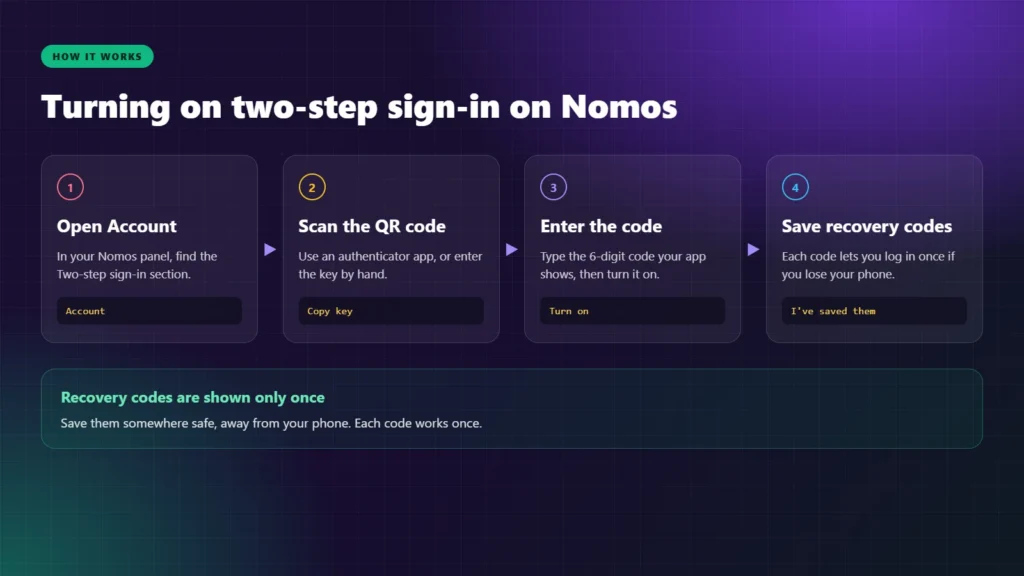
Before you start, keep your phone nearby with an authenticator app installed. Then follow these steps:
- Log in to your Nomos control panel and open Account from the sidebar.
- Find the Two-step sign-in section. It shows Off until you set it up.
- Click Turn on two-step sign-in.
- Open your authenticator app. Nomos gives Google Authenticator, Microsoft Authenticator and 1Password as examples.
- Scan the QR code with the app. Alternatively, click Copy key and enter the key in the app by hand.
- Type the 6-digit code the app shows into Nomos, then click Turn on.
- Save your recovery codes, then click I’ve saved them.
From now on, logging in needs your password and a code from your authenticator app.
How to use your authenticator app at login
Logging in now has one extra step. First, enter your email and password as usual. Next, Nomos asks you to open your authenticator app and enter the 6-digit code for Nomos. Then you’re in.
The code changes every few moments, so type the one that’s showing right now. If a code doesn’t work, simply wait for the next one and try again.
What are recovery codes?
Recovery codes are your backup way in. When you turn on two-step sign-in, Nomos shows a set of recovery codes. As the panel explains, if you lose your phone, each code lets you log in once.
There are two important rules:
- Nomos shows them only once. So save them straight away, for example in a password manager, or print them and keep the paper somewhere safe.
- Each code works once. After you use one, it’s gone.
Your Account page also shows how many recovery codes you have left. If you’re running low, Nomos warns you, and you can click New recovery codes to make a fresh set. To do that, you’ll need your password and the current code from your app. Note that your old recovery codes stop working once you make new ones.
What to do if you lose access to your authenticator
Losing a phone is stressful, but recovery codes exist for exactly this moment.
If you have your recovery codes
- Go to the Nomos login page and enter your email and password.
- When Nomos asks for the 6-digit code, choose Use a recovery code.
- Enter one of the recovery codes you saved. Each code works once.
Once you’re in, make sure you still have enough recovery codes for next time.
If you don’t have your recovery codes
Nomos doesn’t publish a self-service way back in without your app or a recovery code. So email support@nomos.wtf and explain what happened. Support hours are Monday to Saturday, 10:00 to 19:00 IST.
Good habits for a secure hosting login
Two factor authentication hosting protection works best alongside a few simple habits:
- Use a strong, unique password. On Nomos, a new password needs at least 10 characters, and you can change it under Account.
- Keep recovery codes away from your phone. If they’re only on the phone you lose, they can’t help you.
- Don’t share your login. If you’ve shared your password in the past, change it under Account.
- Protect your websites too. Two-step sign-in protects your Nomos account. For your websites, Nomos also includes malware scanning, an IP blocker and automatic backups. See how to block unwanted IP addresses on Nomos.
Frequently asked questions
Where do I find two-step sign-in on Nomos?
Open Account in the Nomos control panel. The Two-step sign-in section is on that page.
Which authenticator app should I use?
Nomos gives Google Authenticator, Microsoft Authenticator and 1Password as examples of authenticator apps you can use.
Does resetting my password turn off two-step sign-in?
No. After a password reset, Nomos asks you to log in with your new password and a code from your authenticator app.
Can I turn two-step sign-in off later?
Yes. On the Account page, choose Turn off and confirm with your password and a code from your app. After that, logging in only needs your password.
Turn on two factor authentication hosting protection today
Open Account in your Nomos control panel and turn on two-step sign-in. It makes a leaked password far less dangerous. New to Nomos? See everything included on the Nomos fact sheet.