
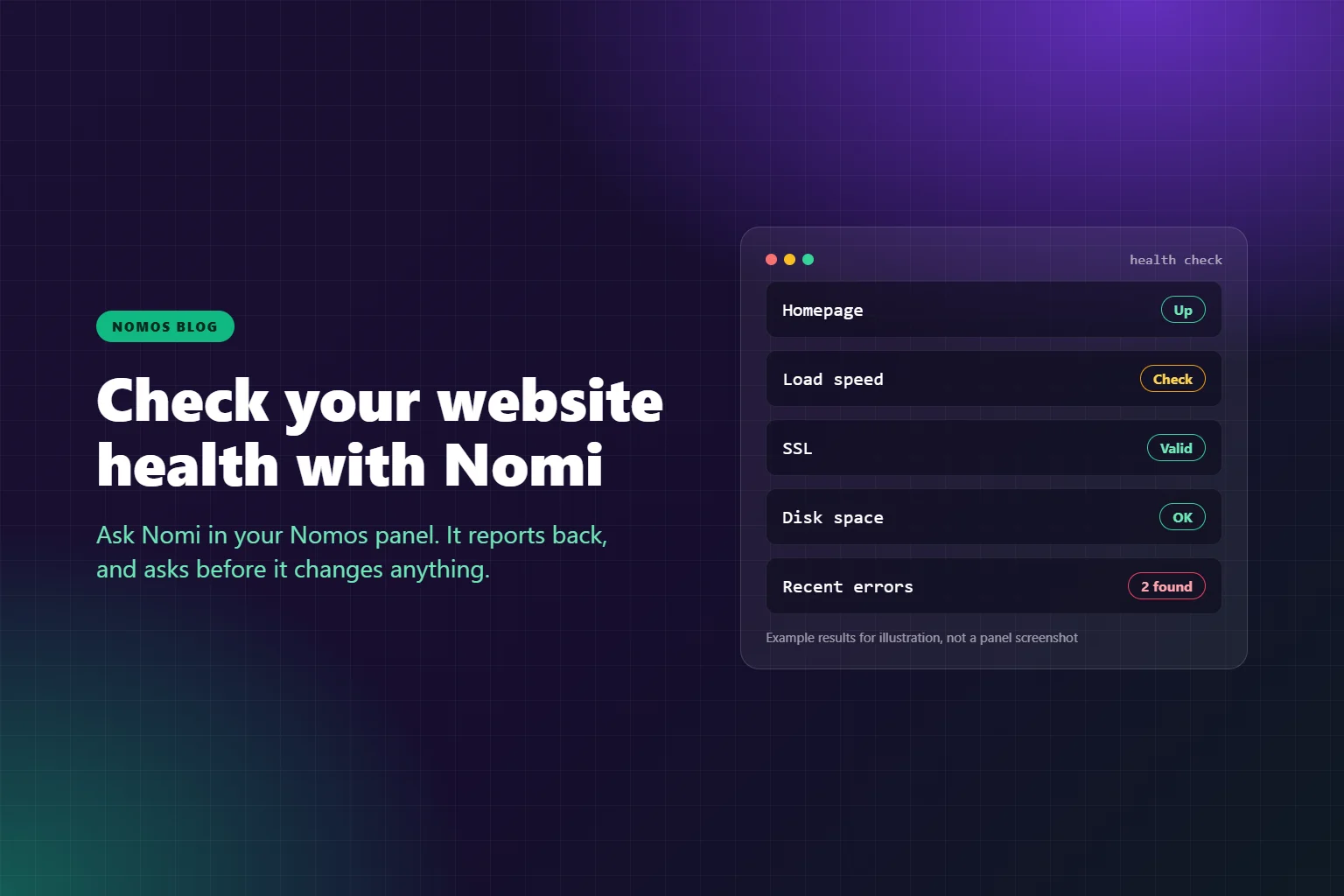
A website health check tells you, in a few seconds, whether your site is in good shape: is the homepage up, how fast does it load, is the SSL certificate working, is there room left on the disk, and has anything gone wrong recently? On Nomos, you don’t need a separate tool for this. You can simply ask Nomi, the AI assistant in your Nomos control panel, to run one for you.
This guide explains what Nomi checks, what each result means, how Nomi can help you fix a problem, and why it always asks for your approval before it changes anything.
What is a website health check?
A website health check is a quick look at the basics that keep a site working for visitors. Think of it as a check-up rather than a full medical. In other words, it won’t rebuild your site or audit every page. Instead, it answers the questions that matter most when something feels off, or when you just want peace of mind.
For a small business, these basics are worth checking now and then. For example, a slow homepage can cost you enquiries, and an expired certificate can scare visitors away with a browser warning. Similarly, a full disk can stop uploads and backups from working. Google’s web.dev team explains why speed matters for keeping visitors engaged.
What Nomi checks in a website health check
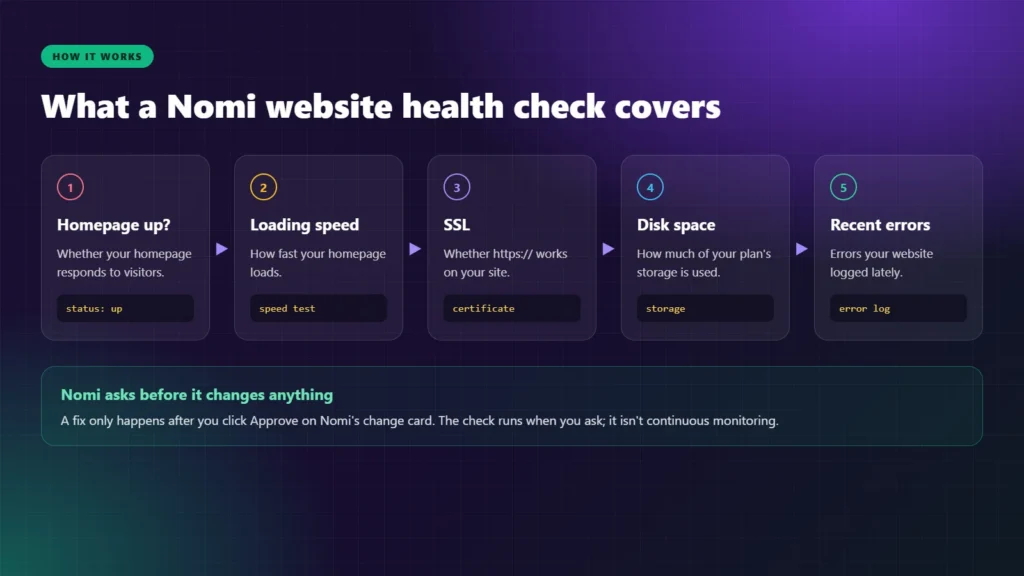
Nomi is included with every Nomos website plan, from Micro to WP Business. According to the Meet Nomi guide, its health check covers five things:
- Is the homepage up? Whether your homepage responds to visitors.
- How fast it loads. A website speed check on the homepage.
- SSL. Whether your site’s security certificate is in place, so https:// works.
- Disk space. How much of your plan’s storage your site is using.
- Recent errors. Errors your website has logged lately.
In addition, Nomi can read your site’s files and logs and run a speed test. That means you can follow up on anything the health check finds in the same chat.
How to run a website health check with Nomi
You don’t need any technical knowledge to start. Here is the simple route:
- Log in to your Nomos control panel.
- Open Nomi from the sidebar, or click Ask Nomi on any page of the panel.
- Ask in plain language. For example: “Run a health check on my website” or “Why is my website slow?”
- Read Nomi’s answer. It explains what it found and what is wrong, if anything.
- If Nomi suggests a fix, review the change card before you approve it.
If you have more than one website on your plan, say which one you mean. That way, Nomi checks the right site.
What your website health check results mean
A result is only useful if you know what to do with it. So here is what each part of the check tells you, and what usually comes next.
Homepage up or down
If the homepage is up, visitors can reach your site. If it isn’t, your site may be returning an error instead of a page. Web servers report this with a status code. Codes in the 500 range, for instance, mean something went wrong on the server side. MDN has a plain list of HTTP response status codes if you want to look one up.
A homepage that is down is the most urgent result. Therefore, ask Nomi to look at your recent errors and logs straight away. If a recent change caused the problem, a backup may be the fastest way back. Our guide to backups on Nomos explains how restores work.
Loading speed
The website speed check shows how quickly your homepage loads. If it’s slow, the cause is often on the site itself rather than the server. Typical causes include heavy images, too many plugins or a theme doing more work than it needs to.
Next, ask Nomi “Why is my website slow?” It can run a speed test and suggest changes. On WordPress, for example, Nomi can turn on the object cache or update WordPress and plugins, once you approve. Our guide to a faster WordPress site on Nomos covers more ideas.
SSL certificate
Every Nomos website plan includes free SSL, issued and renewed automatically. So, if the SSL check shows a problem, the cause is usually the domain connection rather than the certificate itself. For instance, the domain may not point at Nomos yet, or DNS changes may still be spreading.
The Nomos help guide notes that the free certificate is issued once your domain shows as Active after you press Check DNS. Our guide to connecting your domain to Nomos walks through the DNS records.
Disk space
Disk space shows how much of your plan’s storage your website uses. Storage depends on your plan. For example, Micro includes 5 GB, Starter 15 GB and Growth 30 GB, while WordPress plans range from 20 GB to 80 GB. You can compare plans on the Nomos pricing page.
If you’re close to the limit, look for large files you no longer need, such as old uploads or leftover archives. Alternatively, consider a plan with more room.
Recent website errors
Recent errors are messages your website has logged, such as a PHP error from a plugin or theme. A few errors aren’t always a crisis. However, a sudden burst of new website errors after an update is a strong clue about what broke.
Ask Nomi to explain an error in plain English. Because Nomi can read your site’s logs and files, it can usually point you towards the plugin, theme or file involved.
How Nomi helps you fix problems
Finding a problem is half the job. Nomi can also do the work for you. According to the Meet Nomi guide, Nomi can take or restore a backup, change PHP settings, turn on the object cache, update WordPress and plugins, add redirects, block an IP address, create a staging copy and more. You can also ask it to check your site for malware.
As a result, a typical conversation looks like this: you ask for a health check, Nomi spots a slow homepage, explains the likely cause and then offers a fix.
Nomi asks for approval before every change
Nomi never changes your website silently. Before every change, it shows a card titled Nomi wants to make a change, which says exactly what it will do.
- Click Approve to go ahead, or Cancel to stop.
- For a longer job, Approve all for this task lets Nomi finish that task without asking at each step.
- You can click Stop at any time.
There are also things Nomi won’t do at all. For example, it won’t delete a website, change your plan or billing, change your account email or password, or touch anyone else’s account.
Like any AI, Nomi can make mistakes. So read each change card carefully before you approve it. For bigger changes, it’s also sensible to take a backup first.
What a Nomi website health check is not
It helps to be clear about the limits, too:
- It isn’t continuous monitoring. Nomi runs a health check when you ask for one. It’s a snapshot of your site at that moment, not round-the-clock website health monitoring.
- It doesn’t send alerts or automated reports. If you want to be told the moment your site goes down, you’ll need a separate uptime monitoring service.
- It has a daily message limit. You can send Nomi 30 messages a day, and the count resets at midnight IST.
When to run a website health check
Since the check takes just a message, it’s worth running whenever something changes or feels wrong. Good moments include:
- After you install or update a plugin or theme.
- After you connect a new domain, to confirm SSL is working.
- When a customer says your site is slow or not loading.
- Before a sale, a launch or an ad campaign sends more visitors your way.
- Every few weeks, as a quick routine website performance check.
Frequently asked questions
Is Nomi included in my Nomos plan?
Yes. Nomi is included with every Nomos website plan, with 30 messages a day. See the Nomos fact sheet for everything included.
Will Nomi fix problems automatically?
No. Nomi can make fixes, but only after you click Approve on its change card. Otherwise, nothing changes.
Can Nomi monitor my website all the time?
No. Nomi checks your site when you ask. For continuous monitoring and alerts, use a dedicated uptime monitoring tool.
Run your first website health check
Log in to your Nomos control panel, open Nomi and ask it to check your website. If you’re not on Nomos yet, compare web hosting plans; every plan includes Nomi, free SSL and backups.