
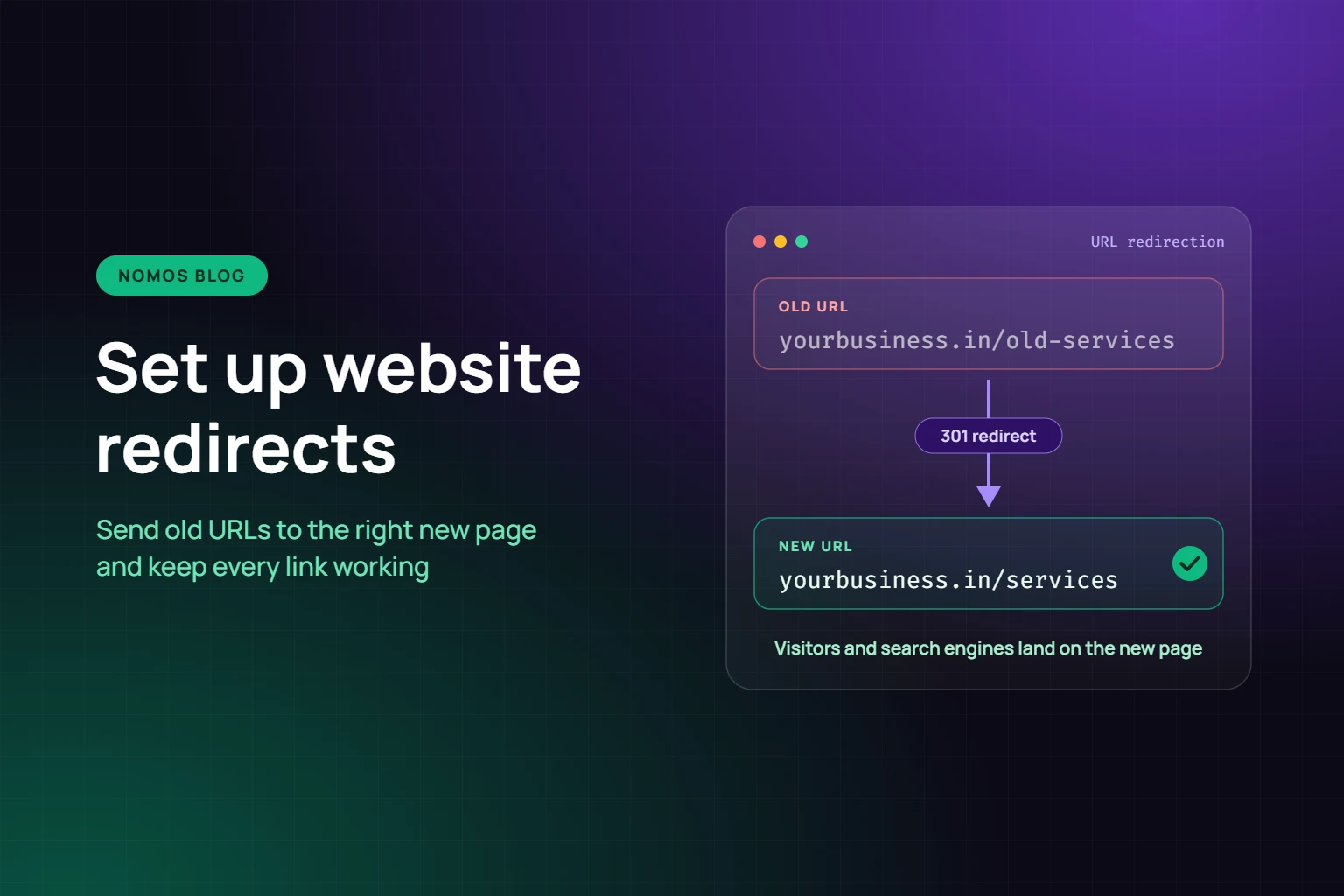
Website redirects send visitors and search engines from an old URL to a new one. So when you rename a page, merge two posts or move your site, nobody lands on a dead link.
This guide explains how redirects work, when to use a 301 redirect or a 302, and how to avoid redirect loops. After that, you’ll see how to add and test redirects on Nomos hosting, either yourself or by asking Nomi, the AI assistant in your control panel.
What are website redirects?
A redirect is an instruction on your server. In short, it says that a page now lives at a different address. When a browser asks for the old URL, the server answers with a redirect status code and the new location. The browser then loads the new page on its own.
For example, a visitor opens yourbusiness.in/old-services. Instead of an error page, they arrive at yourbusiness.in/services. Most people never notice the extra hop.
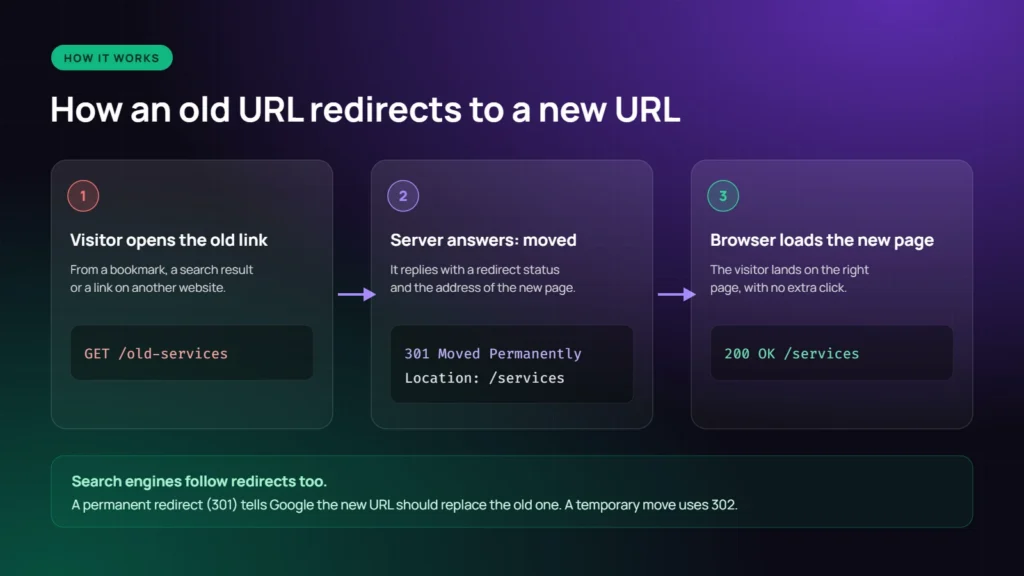
Website redirects like this run on the server, before any page loads. That’s why Google recommends server-side redirects when a page moves. Also, they work the same way for people and for search engine crawlers.
Why website redirects matter
Every URL you publish ends up somewhere: in Google’s results, in WhatsApp chats, on printed flyers and in other people’s articles. If the URL changes and nothing points to the new page, all of those links break.
Redirects fix that. In particular, they help you:
- Keep visitors moving. People who click an old link still reach the content they wanted.
- Keep links from other sites useful. A link to an old URL keeps sending people to the right page.
- Tell search engines about the move. A permanent redirect signals that the new URL should replace the old one in results.
- Avoid a pile of 404 errors after a redesign or a migration.
What redirects do (and don’t do) for SEO
Redirects don’t improve your Google rankings by themselves. Instead, they protect what you already have. Google treats a permanent redirect as a strong signal that the target page is the canonical version, the one it shows in results. As a result, the new URL can take the old one’s place over time.
Your rankings still depend on the content and quality of the new page. Google explains the details in its guide to redirects and Google Search.
301 vs 302: permanent and temporary redirects
Website redirects use HTTP status codes. Two of them cover almost every situation on a small business website:
| Type | Status code | Use it when | What Google does |
|---|---|---|---|
| Permanent | 301 (or 308) | The page has moved for good | Usually shows the new URL in results |
| Temporary | 302 (or 307) | The move is short and the old page will come back | May keep showing the old URL in results |
So for a renamed page, a merged article or a new domain, use a 301 redirect. Use a 302 only for a short-term change, for example during a short maintenance window or for a link whose destination you change often.
Whichever tool you use, make sure a permanent move ends up as a 301. The testing section below shows how to check the status code in a few seconds.
When to redirect an old URL to a new URL
Use website redirects whenever a URL that people or search engines already know stops working. Common cases include:
- You renamed a page or changed its slug, for example
/our-servicesto/services. - You merged two similar pages or blog posts into one stronger page.
- You removed a product or service, and a close replacement exists.
- You moved to a new domain, or from old
.htmlpages to WordPress. - You changed your site structure, such as moving posts under
/blog/.
However, don’t redirect a page just because it’s old. If a page has no replacement and no useful match, a 404 page is the honest answer. Sending it to an unrelated page confuses visitors, and Google may treat it as a soft 404.
Changed a page URL? Add the redirect straight away
The most common moment you need a redirect is right after you edit a URL. Here’s a simple routine to redirect an old URL to a new URL:
- Write down the old URL before you change it.
- Change the URL and save the page.
- Add a redirect from the old path to the new URL.
- Open the old URL and confirm that it lands on the new page.
- Update links in your menu, footer and posts so they point straight to the new URL.
WordPress usually redirects a changed post slug on its own. However, it doesn’t do the same for pages, and it can’t help with a site move. So test the old URL, and add a redirect if it fails.
Before a big restructure, try your changes on a staging copy first (included with Growth and WordPress plans). Also, a recent backup gives you an easy way back if something breaks.
How redirects help visitors avoid broken links
A broken link sends people to a 404 page. Some will search your site, but many will simply leave. With website redirects in place, the same click takes them to the page they wanted.
Old links also live longer than you think. For instance, people bookmark pages, Google may show an old URL for a while, and links in emails and PDFs never update. A single redirect covers all of them at once.
Still, redirects aren’t a replacement for fixing your own links. Each redirect adds an extra request, so point your internal links at the final URL whenever you can.
Common mistakes with website redirects
Redirect loops
A loop happens when URL A redirects to URL B and B redirects back to A. The browser goes round in circles and then gives up. In Chrome, you’ll see an error saying the page redirected you too many times (ERR_TOO_MANY_REDIRECTS).
Loops usually come from two rules that undo each other. For example, one rule sends /shop to /store while another sends /store back to /shop. Clashing http/https or www settings can cause them too. To fix a loop, list every rule that touches those URLs, then delete or change the one that points backwards.
Redirect chains
A chain is A → B → C. It still works, but every hop adds delay. Google’s site move guide suggests keeping chains short and sending old URLs straight to the final page. So when you move a page a second time, update the first redirect too.
Sending everything to the homepage
It’s tempting to point every old URL at the homepage. Unfortunately, visitors then can’t find what they were looking for, and Google may treat these redirects as soft 404 errors. Instead, map each old URL to the closest matching page.
Other mistakes to avoid
- Using a temporary 302 for a permanent move.
- A typo in the destination, which sends people to a 404 anyway.
- Pointing a redirect at a page that you later move or delete.
- Removing redirects too soon. For a site move, Google suggests keeping them for at least a year, and longer is better.
How to test website redirects
Testing takes a minute, so do it every time you add or change a redirect.
1. Check in your browser
Open the old URL in a private (incognito) window. Browsers remember permanent redirects, and a private window avoids those saved results. Then check that the address bar shows the new URL and that the right page loads.
2. Check the status code
To see exactly what the server sends back, run this command in a terminal. On Windows, type curl.exe in PowerShell instead of curl.
curl -I https://yourbusiness.in/old-servicesLook for two things in the response: the status, such as HTTP/2 301, and a location header with the new URL. To follow every hop, use curl -IL instead. If you see more than one redirect, you have a chain. If curl stops with a “Maximum redirects followed” error, you have a loop.
3. Check in Google Search Console
After Google crawls the old URL again, the URL Inspection tool in Search Console shows what Google knows about it. This isn’t instant, so give it some time after the change.
How to set up website redirects on Nomos
Redirects come with every Nomos web hosting and WordPress hosting plan. On the Nomos pricing page, “Redirects and subdomains” appears as included, next to developer tools such as the file manager, phpMyAdmin and cron jobs. So you don’t need a separate service for URL redirect management. The VPS plans don’t list it: on a VPS you manage the web server yourself, so you add redirects in its configuration.
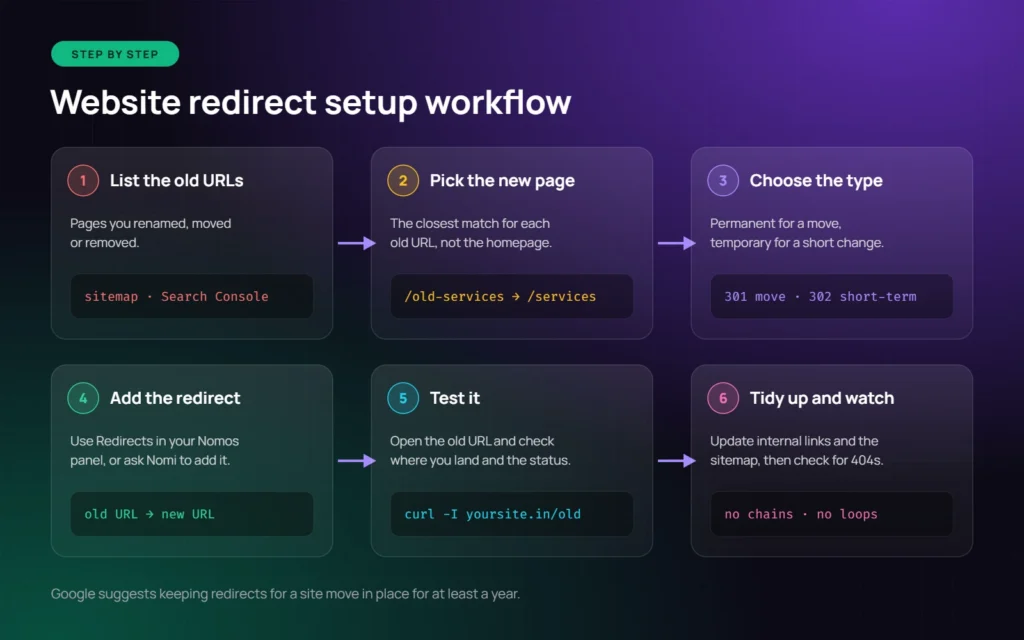
You can add a redirect in two ways: yourself in the Nomos control panel, or by asking Nomi to do it for you. Either way, prepare these details first:
- The old path, for example
/old-services - The full new URL, for example
https://yourbusiness.in/services - Whether the move is permanent or temporary
Then log in to your Nomos control panel and add the redirect for the right website. If you’re not sure where to start, ask Nomi, check the Nomos help page or email support@nomos.wtf (Monday to Saturday, 10:00 to 19:00 IST).
Redirects only take effect once your domain points at your Nomos website. If you haven’t done that yet, first connect your domain to Nomos. Once the redirect is saved, test the old URL with the steps above.
Let Nomi add website redirects for you
Nomi is the AI assistant in the Nomos control panel. It can check your existing redirects and add new ones. You’ll find it under Nomi in the sidebar, or you can click Ask Nomi on any page of the panel.
Describe the redirect in plain words. For example:
- “I renamed /about-us to /about. Please add a redirect.”
- “Add a redirect from /old-services to https://yourbusiness.in/services.”
- “Which redirects does my website have right now?”
Before Nomi changes anything, it shows a card, Nomi wants to make a change, that says exactly what it will do. Read the old and new URLs on the card, then click Approve to go ahead or Cancel to stop. For a batch of redirects, Approve all for this task lets Nomi finish without asking at each step, and you can click Stop at any time.
Like any AI, Nomi can make mistakes. So check each change card, and test the redirect afterwards. You can send Nomi 30 messages a day. To learn more, read Meet Nomi, the AI assistant in your Nomos panel.
Practical examples of website redirects
- Renamed a service page:
/web-design-services→/services/web-design, 301 (permanent) - Merged two blog posts:
/seo-tips-2025→/seo-tips, 301 (permanent) - Moved from .html pages to WordPress:
/about.html→/about/, 301 (permanent) - Product replaced by a newer model:
/products/router-x100→/products/router-x200, 301 (permanent) - Booking page down for a week of repairs:
/book-a-table→/contact, 302 (temporary) - QR code on a flyer that changes each season:
/qr→/offers/diwali, 302 (temporary)
Notice the pattern. If the old page is gone for good, use a 301. If you plan to bring it back, or you change the destination often, use a 302.
Moving a whole site to a new domain is a bigger job. Google calls it a site move with URL changes and has a step-by-step guide. If you’re also moving your hosting, see how to move your website to Nomos.
Frequently asked questions about website redirects
Do website redirects improve Google rankings?
No, not by themselves. A redirect helps Google understand that a page has moved, so the new URL can take the old one’s place. Rankings still depend on the new page’s content and quality.
What is the difference between a 301 and a 302 redirect?
A 301 redirect says the page has moved permanently, so Google usually treats the new URL as the main version. A 302 says the move is temporary, so Google may keep showing the old URL.
How long should I keep a redirect?
As long as you can. For a site move, Google suggests at least a year. Old links in emails, PDFs and other websites can keep sending visitors for much longer.
Can I redirect deleted pages to my homepage?
Only if the homepage is a true replacement. Otherwise, redirect to the closest matching page, or let the URL return a 404.
Why does my browser say a page redirected too many times?
That is usually a redirect loop: two rules send the browser back and forth. Find the rules that involve those URLs and remove the one that points backwards.
Are redirects included with Nomos hosting?
Yes, on every web hosting and WordPress hosting plan. The Nomos pricing page lists redirects and subdomains as included, and Nomi can add a redirect for you after you approve the change. VPS plans don’t list them.
Set up your redirects on Nomos
Good website redirects keep visitors, links and search signals pointing to the right place whenever your site changes. If you’re planning a redesign or a move, Nomos web hosting includes redirects, automatic backups and Nomi, the assistant that can add redirects for you.
Not sure which plan fits? Read which Nomos plan is right for your website or compare every feature on the pricing page.