
WordPress and many other websites run on PHP. On Nomos, the PHP settings in web hosting that matter most are three: the PHP version, your php.ini settings and the memory limit. Get them right, and your site runs smoothly. Get them wrong, and you may see errors such as a memory limit message.
This beginner’s guide explains each one in plain language. Then it shows where to find them in the Nomos control panel and how to fix the common problems they cause.
What is PHP, and why do websites use it?
PHP is a programming language that runs on the web server. When someone opens a page, PHP runs your site’s code, fetches data from a database and builds the HTML that the browser shows.
For example, WordPress is written in PHP. So are WooCommerce, most WordPress plugins and themes, and many custom business websites.
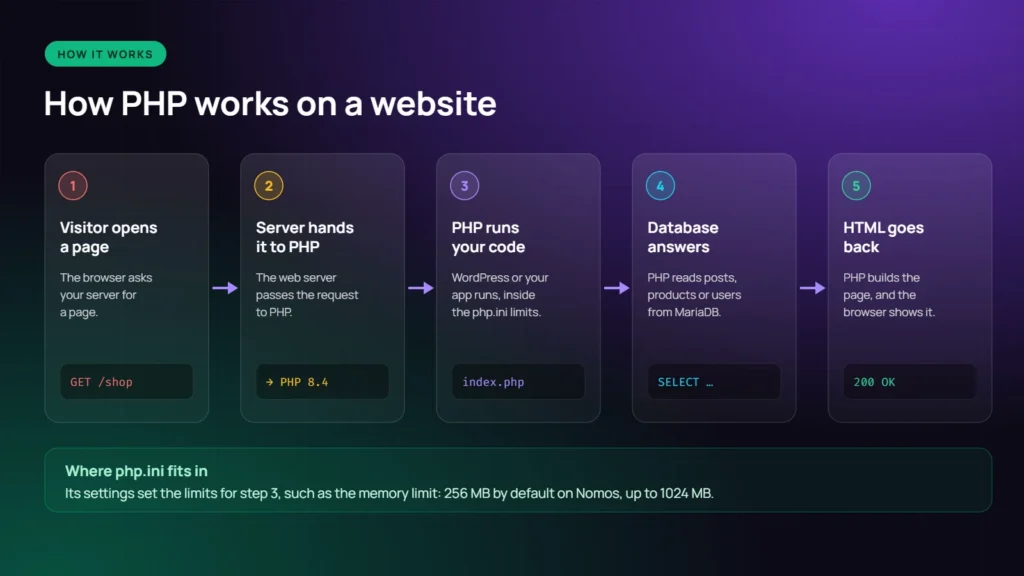
On Nomos, you can run PHP, HTML or WordPress websites. Each website runs in its own container, with its own CPU and memory, so one busy site doesn’t slow down another.
What does a PHP version mean?
PHP improves in numbered releases, such as 8.3 and 8.4. Each version adds features, removes old ones and gets bug and security fixes for a fixed period.
The PHP project publishes these dates on its supported versions page. After active support ends, a version only gets security fixes. After that, it gets no fixes at all. That’s why running a supported version matters.
Your site’s code also has to suit the version. For instance, an old plugin written for PHP 7 may show warnings or errors on PHP 8.4.
PHP 8.3 vs PHP 8.4: what is the difference?
Nomos offers both PHP 8.3 hosting and PHP 8.4 hosting, and you choose one for each website. New websites start on PHP 8.4, the newest version Nomos offers.
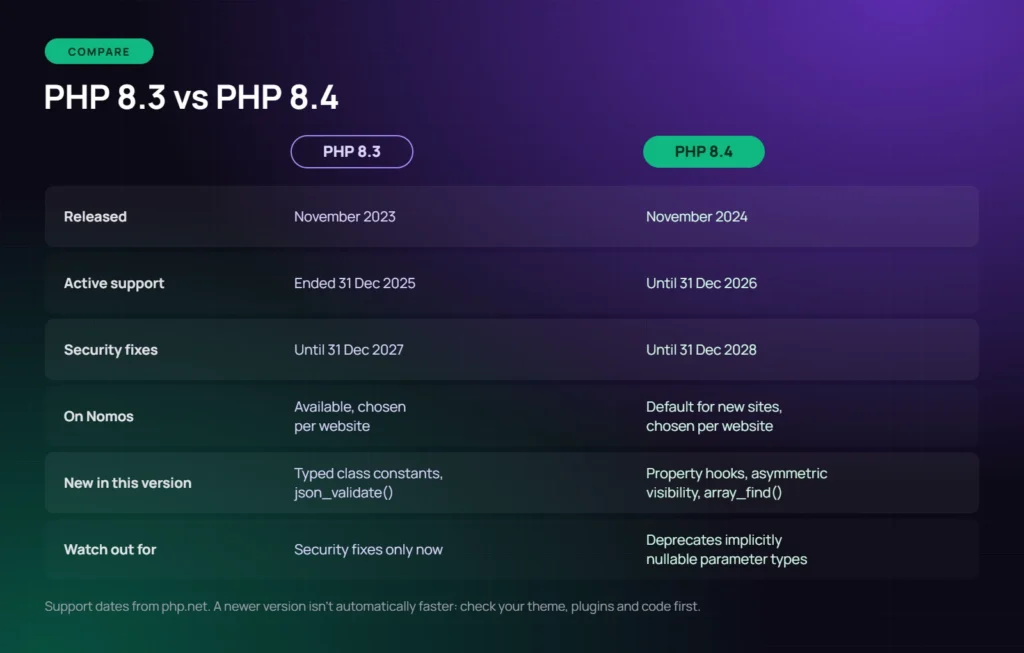
- Support dates. PHP 8.3 now gets security fixes only, until 31 December 2027. PHP 8.4 gets active support until 31 December 2026 and security fixes until 31 December 2028.
- New features for developers. PHP 8.3 added typed class constants and
json_validate(). PHP 8.4 added property hooks, asymmetric visibility and new array functions such asarray_find(). - Deprecations. PHP 8.4 deprecates implicitly nullable parameter types, a pattern found in older plugins. Such code still runs, but it triggers deprecation notices.
Is PHP 8.4 faster than PHP 8.3? Don’t assume it. Speed depends mostly on your code, plugins, database and caching. So choose a version for support and compatibility, then measure your own site.
What is php.ini?
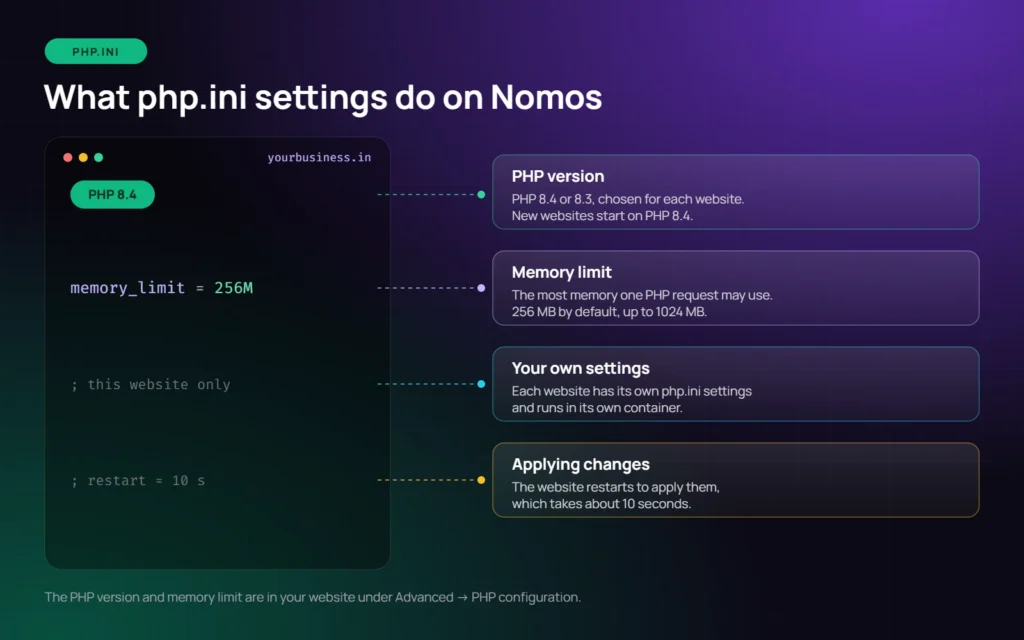
php.ini is PHP’s configuration file. It holds directives: simple name and value pairs such as memory_limit = 256M. They set limits and rules for every request.
On Nomos, each website has its own php.ini settings. The one Nomos documents in detail is the memory limit, explained below.
Why PHP settings in web hosting matter
The defaults suit many small websites. However, a WooCommerce store or a page builder can need more memory than a simple blog.
On the other hand, limits protect you. A runaway script stops at the limit instead of using up your site’s resources. So change PHP settings in web hosting when you have a clear reason, not just to be safe.
The memory limit (memory_limit) explained
The memory limit is the most memory one PHP request may use. When a request needs more, PHP stops it with an “Allowed memory size … exhausted” error. The PHP manual describes it in its list of core php.ini directives.
On Nomos, the memory limit is 256 MB by default and can go up to 1024 MB for each website.
What you can change on Nomos
Here’s the PHP configuration that Nomos offers for each website:
| Setting | What Nomos offers |
|---|---|
| PHP version | PHP 8.3 or 8.4, your choice for each website. New websites start on 8.4. |
| php.ini settings | Your own php.ini settings for each website. |
| Memory limit | 256 MB by default, up to 1024 MB. |
| Where to find it | Advanced → PHP configuration, in each website. |
| Applying changes | The website restarts, which takes about 10 seconds. |
For any other PHP setting, open the PHP configuration page, or ask Nomi or support@nomos.wtf.
This PHP configuration comes with every Nomos web hosting and WordPress hosting plan, as the pricing page shows. VPS plans are different: they’re unmanaged servers with root access, so you set up PHP yourself.
How to manage PHP settings on Nomos
1. Open the PHP configuration page
Log in to your Nomos control panel, open your website, then go to Advanced → PHP configuration. Each website has its own settings, so make sure you’ve opened the right one.
2. Check your PHP version
Nomos’s own guide to making WordPress faster says to check the version here. If your site is on 8.3, first check that your theme and plugins support 8.4, then switch.
3. Adjust the memory limit if needed
On the same page, the memory limit is 256 MB by default and can go up to 1024 MB. If WooCommerce or a page builder runs short, raise it in steps, for example to 512 MB.
4. Let the website restart
Changes apply when the website restarts, which takes about 10 seconds. Then reload the page that had the problem. If it still looks out of date, go to Performance → Cache and click Clear cache. That empties the object cache and PHP’s compiled-code cache.
Fix upload permission errors
If uploads fail with a “permission denied” message, click Fix file permissions on the same PHP configuration page.
Or ask Nomi to do it
Nomi, the AI assistant in your panel, can change PHP settings for you. For example, ask: “Raise the memory limit for my shop website to 512 MB.” Nomi then shows a card that describes the change, and nothing happens until you click Approve. Learn more in Meet Nomi.
Check compatibility before you change PHP versions
A PHP version change affects all the code on your site. So check these points first:
- Take a backup. On Nomos, take one from Backups before big changes. Restoring takes one click.
- Update everything. Update WordPress, your theme and your plugins, because updates often add support for newer PHP versions.
- Check requirements. Look at each plugin’s or theme’s stated PHP requirements, or ask its developer. For custom code, check the
phprequirement incomposer.json. - Switch and test. Change the version, then test key pages: the homepage, a post, your contact form and the checkout.
- Roll back if needed. If something breaks, choose the earlier version again for that website, or restore your backup.
For reference, WordPress recommends PHP 8.3 or greater, so both versions on Nomos meet that recommendation.
Common PHP problems on Nomos and how to fix them
“Allowed memory size of … bytes exhausted”
A request needed more memory than the memory limit allows. On Nomos, raise the memory limit on the PHP configuration page, up to 1024 MB. If it keeps happening, a plugin may be using too much memory, so deactivate plugins one at a time to find it.
“There has been a critical error on this website”
This WordPress message often appears after a PHP version change, when a plugin or theme isn’t compatible. WordPress usually emails the site admin with details. Choose the earlier PHP version again, or restore your backup, then update or replace that plugin. Nomi can also read your site’s logs to help find the cause.
Uploads fail with “permission denied”
This is a file permission problem. Use Fix file permissions on the PHP configuration page.
A change seems to do nothing
Wait about 10 seconds for the website to restart. Next, clear the cache under Performance → Cache and reload. Also check that you changed the right website, since each one has its own settings.
Practical examples for WordPress and PHP website owners
- WooCommerce memory errors at checkout. Raise the memory limit from 256 MB to 512 MB, wait for the restart, then test checkout again.
- Moving an older WordPress site that ran PHP 7.4 elsewhere. Nomos runs PHP 8.3 and 8.4. So update WordPress, the theme and plugins on the old host first, then move your website to Nomos.
- A custom PHP app. If
composer.jsonsays"php": "^8.2", both 8.3 and 8.4 satisfy it. Start on 8.4 and test. - A new site with nothing special. Keep the defaults. New Nomos sites start on PHP 8.4 with a 256 MB memory limit.
Frequently asked questions about PHP settings in web hosting
What are PHP settings in web hosting?
They are the options that control how PHP runs your website, such as the PHP version and php.ini settings like the memory limit. On Nomos, you set the PHP version and memory limit for each website under Advanced → PHP configuration.
Which PHP versions does Nomos support?
PHP 8.3 and PHP 8.4. You choose one for each website, and new websites start on PHP 8.4.
Will switching to PHP 8.4 make my website faster?
Not automatically. Speed depends mostly on your code, plugins, database and caching, so measure your site before and after any change.
Can I edit php.ini settings on Nomos?
Yes. Each website has its own php.ini settings. The PHP version and memory limit are on the Advanced → PHP configuration page. For any other setting, check that page or ask support.
How much memory can a Nomos website use?
The PHP memory limit is 256 MB by default and can go up to 1024 MB for each website.
What should I do if my site breaks after a PHP change?
Choose the previous PHP version again for that website, or restore the backup you took. Then update or replace the plugin or theme that caused the error.
PHP hosting in India with Nomos
Nomos web hosting runs your PHP and WordPress websites on servers in India. Every web hosting and WordPress plan includes PHP 8.3 and 8.4, php.ini settings for each website and Nomi to help with changes.
Running WordPress? Compare our WordPress hosting plans, or read which Nomos plan is right for your website.