
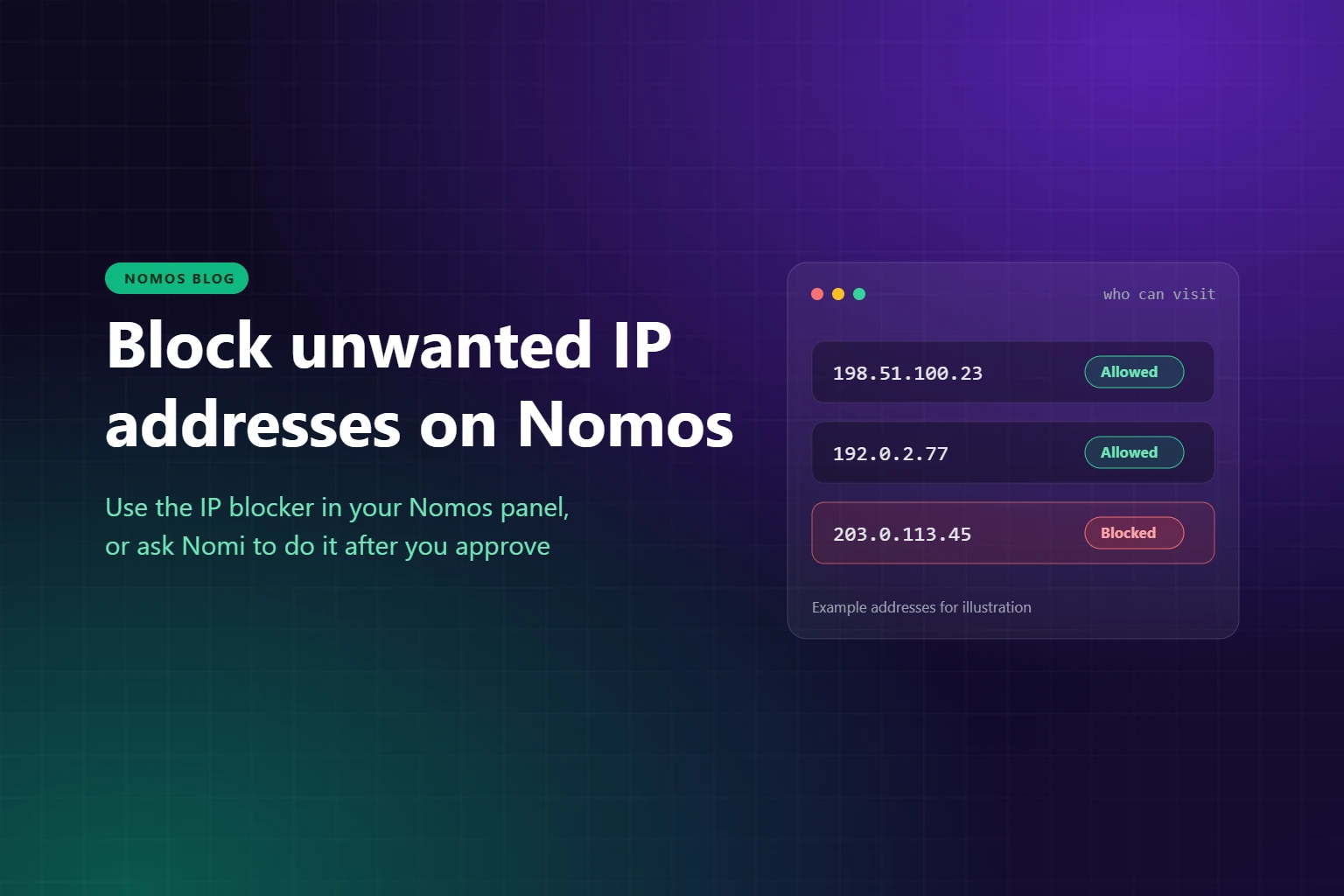
An IP blocker in web hosting lets you stop one specific address from reaching your website. If a single visitor keeps hammering your login page, fills your contact form with spam or pulls pages far faster than any person could, blocking their IP address is a quick way to shut them out.
Every Nomos website plan includes an IP blocker. This guide explains what an IP address is, what the IP blocker does, when to use it and how to use it safely, either yourself or by asking Nomi, the AI assistant in your Nomos control panel.
What is an IP address?
An IP address is the number that identifies a device or network on the internet. When someone opens your website, their browser sends a request, and that request carries their IP address so your server knows where to send the page.
Think of it as the return address on a letter. An IPv4 address looks like four numbers separated by dots, such as 203.0.113.45. Cloudflare’s guide What is my IP address? explains more, including the newer IPv6 format.
One thing to keep in mind: an IP address is not a person. Many home and mobile connections get an address that changes over time, and many people can share one address, for example everyone on an office or college network.
The addresses in this guide, such as 203.0.113.45, come from ranges reserved for documentation in RFC 5737, so they don’t belong to anyone real.
What does an IP blocker in web hosting do?
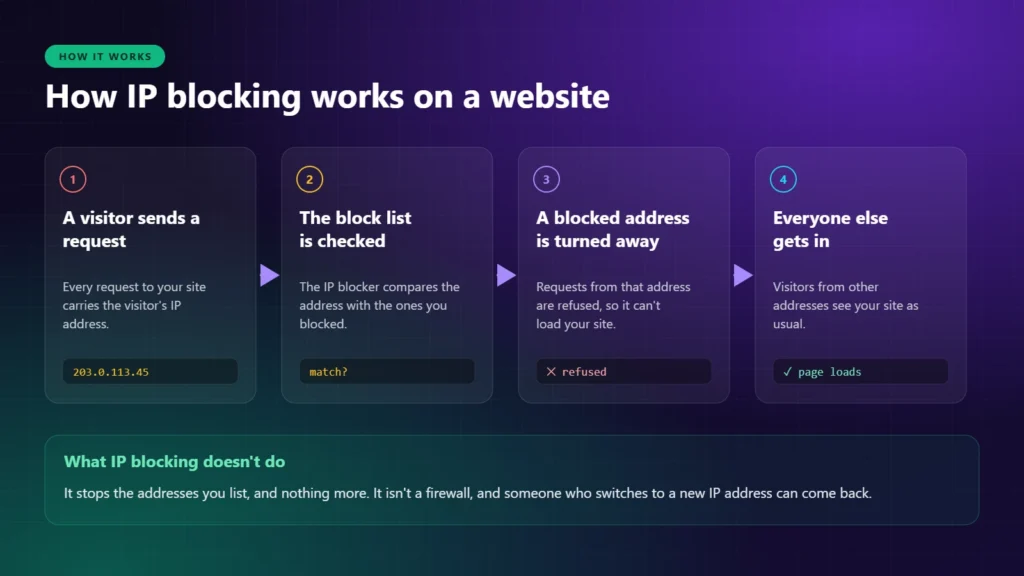
An IP blocker keeps a list of addresses that are not allowed to reach your website. When a request arrives from an address on that list, it is turned away. Requests from every other address carry on as normal.
On Nomos, the IP blocker is included in every website plan, from Micro to WP Business. The Nomos help guide sums up its job in one line: block abusive visitors with the IP blocker.
Why block an IP address on your website?
Most visitors are welcome. But now and then one address causes trouble you can see in your logs or your inbox. Blocking it with an IP blocker in web hosting is a simple form of website access control: you decide that this address can no longer reach your site.
Examples of unwanted or abusive website traffic
- Repeated login attempts. One address tries password after password on your WordPress login page. This is a brute force attack, and credential stuffing is a version that uses passwords leaked from other sites.
- Form spam. The same address submits your contact or enquiry form again and again.
- Aggressive scraping. A bot copies every page or product price on your site, far faster than a person could read.
- Probing for weak spots. One address keeps requesting admin pages, old scripts or config files that your site doesn’t even have.
- Junk orders or sign-ups. Fake orders or accounts on your store keep coming from the same address.
In each case, the pattern is the same: one address, doing something no real customer would do, over and over.
How an IP blocker in web hosting works
Here is what happens behind the scenes when you block unwanted visitors by IP address:
- A visitor’s browser, or a bot, sends a request to your website.
- The request arrives with the visitor’s IP address.
- That address is checked against your block list.
- If it matches, the request is refused and the visitor doesn’t get your page.
- If it doesn’t match, your website loads as usual.
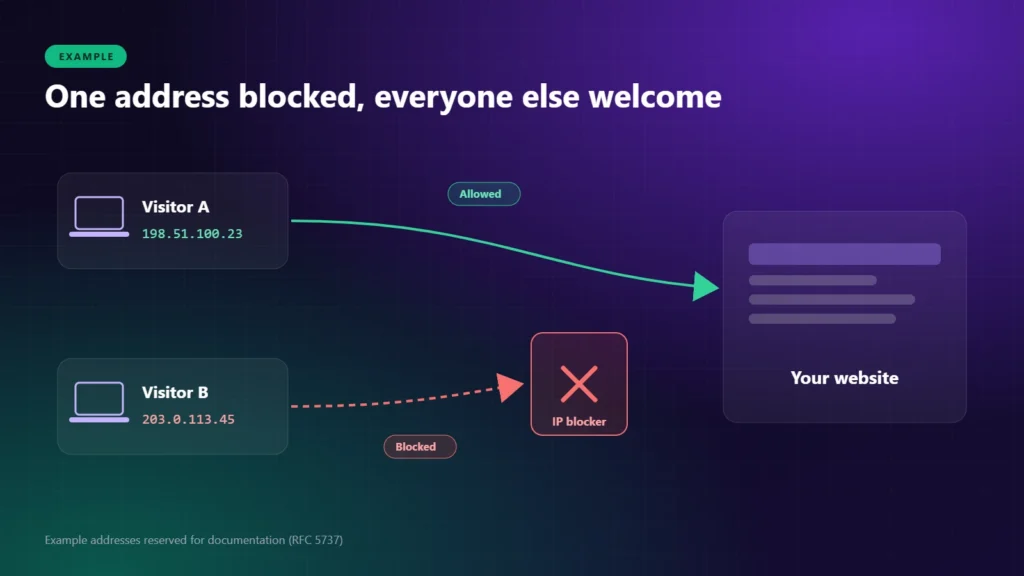
However, an IP blocker in web hosting only stops the addresses you list. It isn’t a firewall that judges every request, and it won’t stop every kind of attack. If someone moves to a new IP address, or spreads requests across many addresses, a single block won’t keep them out.
How to block an IP address with the Nomos IP blocker
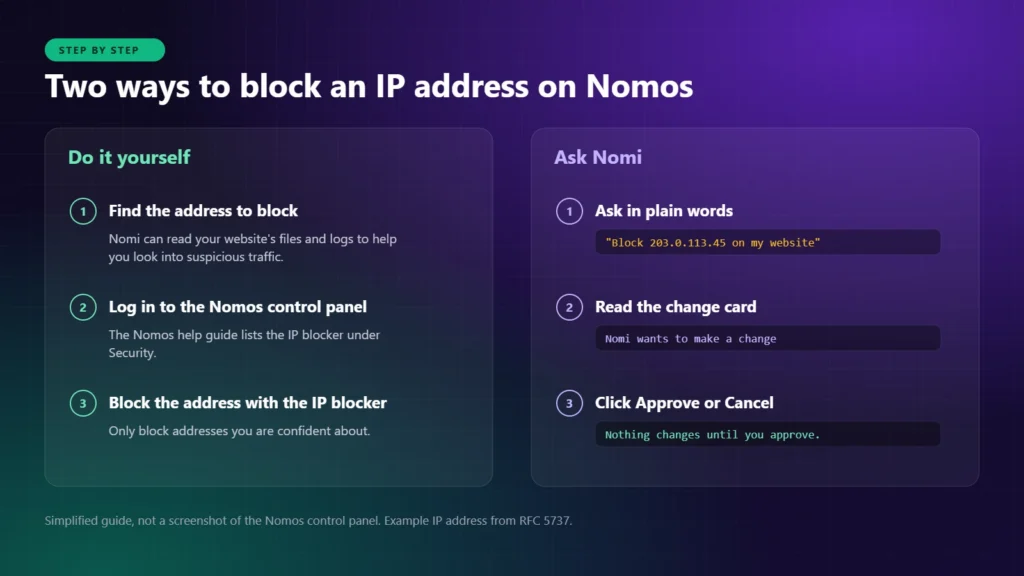
You can block an address yourself in the Nomos control panel, or ask Nomi to do it for you. Both routes are below.
Step 1: Find the IP address you want to block
Start with evidence. Nomi can read your website’s files and logs, so you can ask it to help you look into suspicious traffic. When you have the address, copy it exactly.
Before you go further, make sure the address isn’t yours, a colleague’s or a service you rely on, such as a payment gateway or an uptime monitor.
Step 2: Log in to the Nomos control panel
Log in to the Nomos control panel. In the Nomos help guide, the IP blocker is listed under Security, alongside malware scanning and password-protected folders.
Step 3: Block the address with the IP blocker
Use the IP blocker to block the abusive visitor’s IP address. Only block addresses you’re confident about.
How Nomi can block an IP address for you
Nomi is the AI assistant in the Nomos control panel. You’ll find it under Nomi in the sidebar, or by clicking Ask Nomi on any page. Blocking an IP address is one of the jobs it can do for you, along with tasks like taking backups, adding redirects and changing PHP settings.
Just ask in plain words, for example: “Block 203.0.113.45 on my website.” Nomi can also help you investigate first, because it can check your websites, security, files and logs.
You can send Nomi 30 messages a day, and the count resets at midnight IST. Read more in Meet Nomi, the AI assistant in your Nomos panel.
The approval step: nothing changes until you say so
Nomi asks before it changes anything. Before it blocks an address, it shows a card, Nomi wants to make a change, saying exactly what it will do. Then:
- Click Approve to go ahead.
- Click Cancel to stop, and nothing changes.
- For a longer job, Approve all for this task lets Nomi finish that task without asking at each step, and you can click Stop at any time.
Read the card before you approve. Like any AI, Nomi can make mistakes, so check that the IP address on the card is exactly the one you meant to block.
Common mistakes when you block unwanted visitors
- Blocking a shared address. Offices, colleges and mobile networks can put many people behind one IP address, so one block can turn away real customers. Cloudflare explains this problem in its post on multi-user IP addresses.
- Blocking yourself or your team. Check the address against your own before you block it.
- Blocking services you depend on. Payment gateways, uptime monitors and search engine crawlers all visit your site. Blocking a crawler by mistake can stop it from reading your pages.
- Copying the address wrong. One wrong digit blocks a stranger and leaves the real problem untouched.
- Treating a block as a full security plan. An IP block deals with one address. Keep your passwords, updates and backups in order too.
- Forgetting what you blocked. Keep a short note of each address, when you blocked it and why, so you can review it later.
If a real visitor tells you they can’t reach your website, ask for their IP address (they can find it by searching “what is my IP”) and check whether it’s one you blocked.
Other ways to keep your website safe on Nomos
An IP blocker in web hosting is one layer of website access control. Nomos plans include a few more that work well alongside it:
- Two-step sign-in for your Nomos account, turned on under Account, with a code from an authenticator app.
- Malware scanning: weekly automatic scans for WordPress sites, plus on-demand scans from your website’s Security menu.
- Password-protected folders to lock parts of your site.
- Automatic backups, daily on Growth and WordPress plans and weekly on Micro and Starter, with one-click restore. See backups on Nomos.
If you think your site has been hacked, the Nomos help guide says to restore a clean backup, change your passwords and run a malware scan, then contact the team.
Frequently asked questions about the IP blocker in web hosting
What is an IP blocker in web hosting?
It is a tool that stops specific IP addresses from reaching your website. Requests from a blocked address are turned away, while every other visitor gets in as usual.
Which Nomos plans include the IP blocker?
All of them: Micro, Starter and Growth web hosting, and WP Starter, WP Growth and WP Business. You can check on the Nomos pricing page.
Can Nomi block an IP address for me?
Yes. Ask Nomi in plain words. It shows a “Nomi wants to make a change” card first, and nothing changes until you click Approve.
Will blocking an IP address stop every attack?
No. It stops only the addresses you block. Attackers can switch addresses or use many at once, so keep strong passwords, two-step sign-in, malware scans and backups in place too.
Does blocking IP addresses improve SEO?
Not directly. It is a security tool, not a ranking tool. In fact, blocking a search engine’s crawler by mistake could stop it from reading your pages.
Not sure which plan fits? Read which Nomos plan is right for your website.