
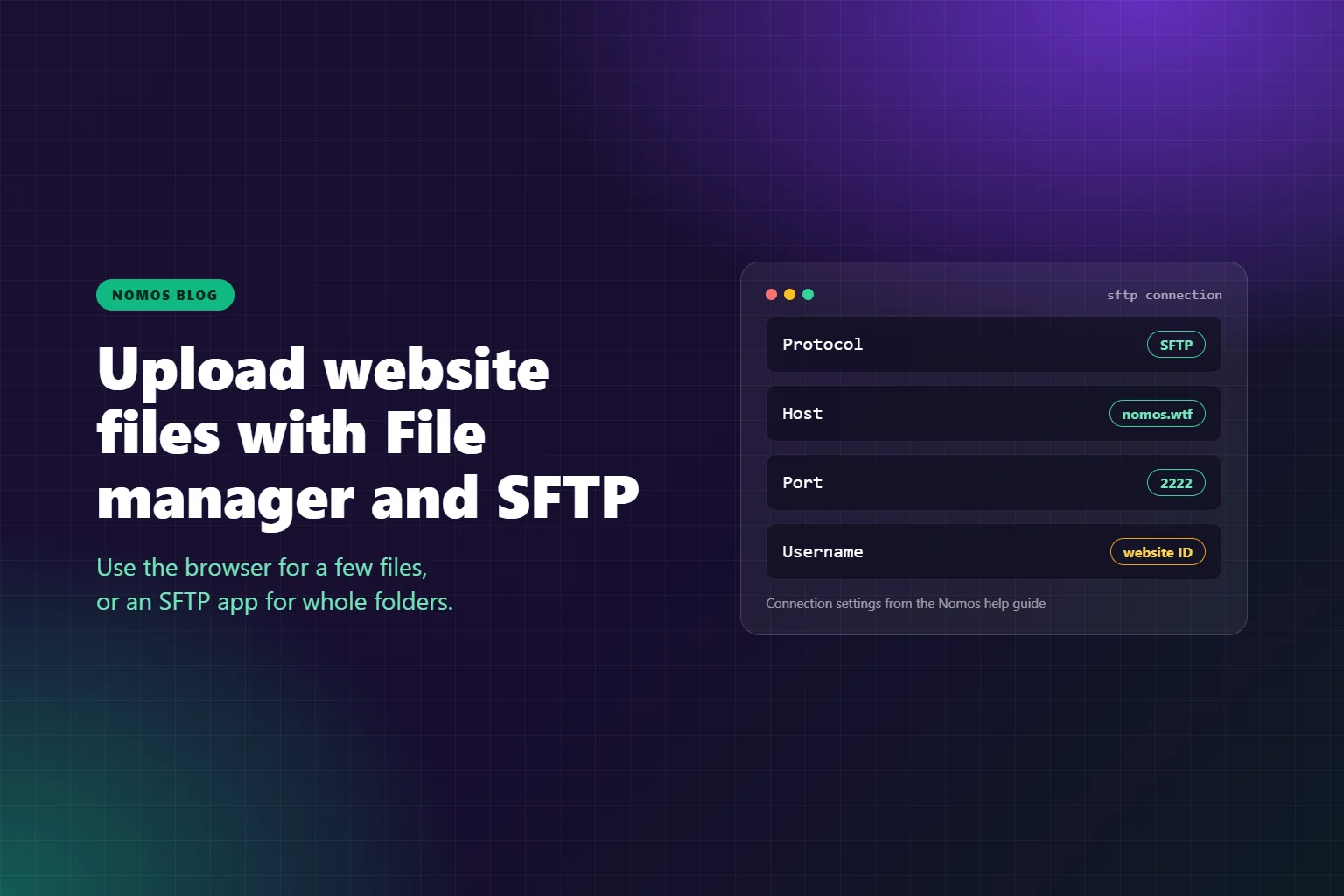
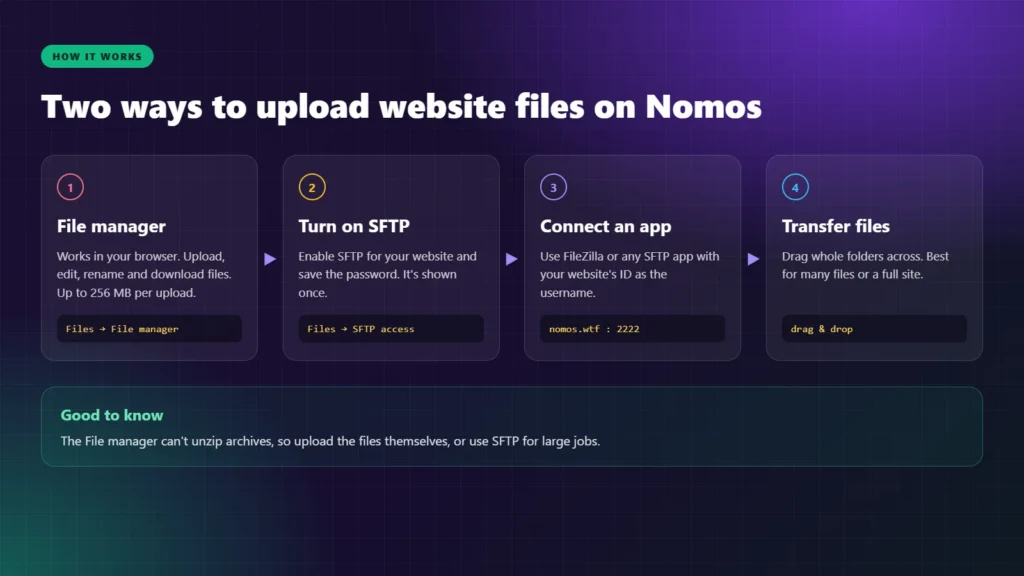
There are two ways to upload website files on Nomos: the File manager, which works in your browser, and SFTP, which connects an app like FileZilla to your website. The File manager is quickest for a few files. However, when you need to upload website files using SFTP, for example a whole site or a large folder, an SFTP app is easier.
This guide explains what each tool does, how they differ, and how to use both on Nomos hosting, step by step.
File manager vs SFTP: what’s the difference?
Both tools do the same basic job: they put files onto your website and let you manage them. The difference is where you work.
- File manager runs inside the Nomos control panel in your web browser. There’s nothing to install. It’s ideal for uploading a few files, editing a single file or downloading something quickly.
- SFTP (SSH File Transfer Protocol) is a secure way to move files between your computer and your website using a desktop app. It’s better for many files, whole folders and regular updates.
In simple terms, the hosting file manager is like using a website to send a few photos, while SFTP is like copying a whole folder from one drive to another. Both are included on every Nomos website plan, as the Nomos pricing page shows.
Before you start
A few things are worth knowing before you upload anything:
- Take a backup first. If you’re about to replace files on a live site, take a backup so you can undo it. Our guide to backups on Nomos shows how.
- Check your storage. Each plan has a storage limit, for example 5 GB on Micro, 15 GB on Starter and 30 GB on Growth. There’s also a limit on the number of files and folders: 100,000 on Micro and Starter, and 200,000 on Growth.
- Upload files, not a .zip. The File manager can’t unzip archives, so upload the files themselves.
How to upload website files with the File manager
The File manager lets you upload, edit, rename and download files in the browser. Here is how to use it:
- Log in to your Nomos control panel and open your website.
- Go to Files → File manager.
- Click Upload, or drag files from your computer straight into the list.
- Wait for the upload to finish, then check that the files appear where you expect them.
Each upload can be up to 256 MB. To change a file, you can edit it in the browser. Likewise, you can rename a file or download a copy to your computer.
When the File manager is the right choice
Use the File manager when a website file upload is small. For instance, it suits replacing a logo, uploading a verification file for a search tool, fixing a typo in a template or downloading one file to check it.
How to upload website files using SFTP
When you have lots of files, SFTP is easier. You turn on SFTP access for your website once, and then connect with any SFTP app.
Step 1: Turn on SFTP access
- In your Nomos control panel, open your website.
- Go to Files → SFTP access.
- Click Enable SFTP.
- Note your username and copy the password the panel shows you.
Your username is your website’s ID, shown on that page. Importantly, the password is shown only once, so save it somewhere safe, such as a password manager. If you lose it, you can reset it on the same page to get a new one.
Step 2: Connect with an SFTP app
Next, open an SFTP app. FileZilla is a popular free choice, and its client supports SFTP. Then enter these details, exactly as the Nomos help guide lists them:
| Setting | Value |
|---|---|
| Protocol | SFTP |
| Host | nomos.wtf |
| Port | 2222 |
| Username | Your website’s ID (shown on the SFTP access page) |
| Password | The password shown when you enable or reset SFTP |
Step 3: Transfer your files
Once you’re connected, your computer’s files usually appear on one side of the app and your website’s files on the other. Then drag files or folders across to upload them. In the same way, you can drag files from your website to your computer to download a copy.
SFTP is especially handy when you move a website to Nomos on a web hosting plan, because you can upload a whole site in one go.
How to manage website files after uploading
Uploading is only the first step. After that, you’ll often need to manage website files day to day:
- Edit and rename: use the File manager for quick edits in the browser.
- Download a copy: use either tool to keep a local copy of an important file before you change it.
- Databases are separate: files and databases are different things. To manage your database, use phpMyAdmin from your website’s Database page instead.
Troubleshooting file uploads on Nomos
Most upload problems have a simple cause. Here are the ones Nomos documents:
- “Permission denied” errors: uploads failing with this message can be fixed with Fix file permissions on the PHP configuration page.
- Upload too large: each File manager upload can be up to 256 MB. For bigger jobs, use SFTP instead.
- Uploaded a .zip that won’t open: the File manager can’t unzip archives. So extract the files on your computer first, then upload them, ideally over SFTP.
- Lost your SFTP password: reset it on the SFTP access page. The new password is shown once, so save it.
If you’re still stuck, you can ask Nomi, the AI assistant in your control panel. It can read your site’s files and logs, and it explains what it finds. Alternatively, email support@nomos.wtf during support hours, Monday to Saturday, 10:00 to 19:00 IST.
Is SFTP secure?
Yes, SFTP file transfer is designed to be secure. It sends your login and your files over an encrypted connection, unlike old-style plain FTP. Even so, keep your SFTP password private, and reset it if you think someone else has seen it.
Frequently asked questions
Do I need SFTP if I use WordPress?
Not usually. Most WordPress work happens in WordPress admin. Still, SFTP is useful when you upload a theme or plugin manually, or move a site.
Is the File manager included in every plan?
Yes. The File manager and SFTP are included on Micro, Starter, Growth and every WordPress plan.
Can I upload a whole website at once?
Yes, with SFTP. Since the File manager can’t unzip archives, SFTP is the easier way to upload many files at once.
Start managing your website files
Log in to your Nomos control panel, open your website and go to Files. If you’re choosing a host, compare Nomos web hosting plans; every plan includes a file manager, SFTP and free SSL.